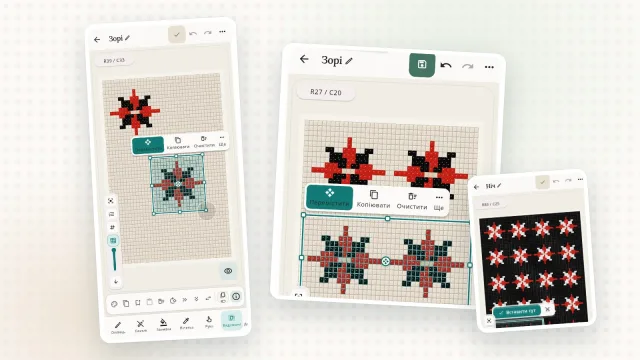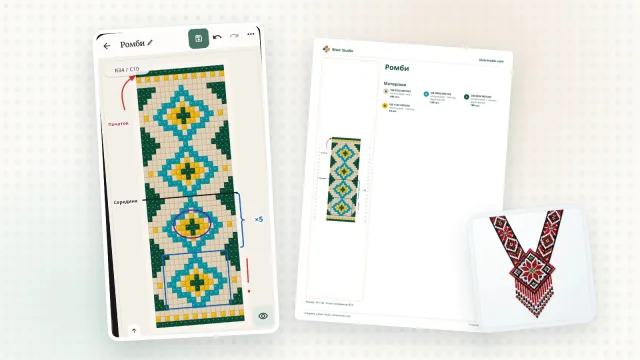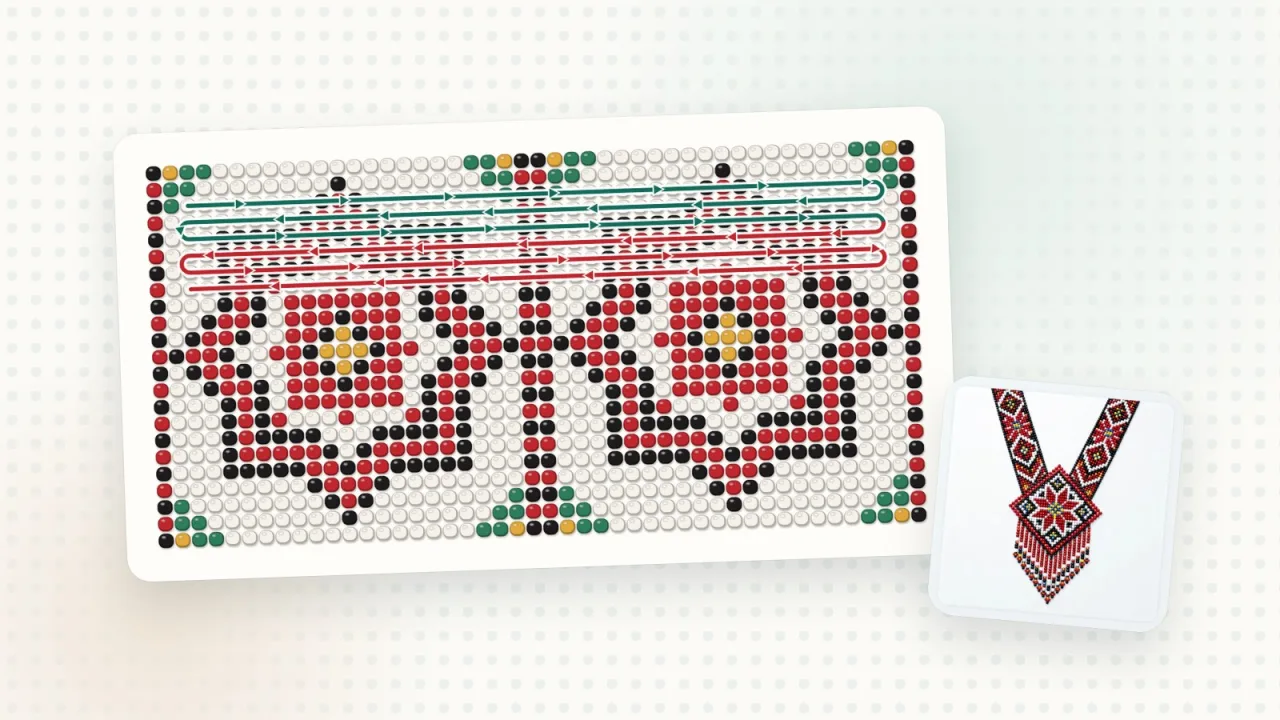
Some bead patterns can’t be explained with colors alone: a sylianka (a Ukrainian netted beaded necklace), beaded balls, pieces made of several parts. To weave them, you need to see where the thread goes, where to start and where to turn. That’s what the “Thread path” tool in Biser Studio is for: it draws the thread path over a finished pattern, while section colors and arrows explain the weaving order.
How to draw a thread
Open the pattern and choose the “Thread path” tool.
Tap “New thread”.
Choose a method: “By points” — tap the beads along the path, or “Freehand” — trace it with your finger or a mouse. Finish by tapping “Done”.
With “Snap to beads” turned on, points jump to the bead centers on their own, so the line comes out neat even on a phone.
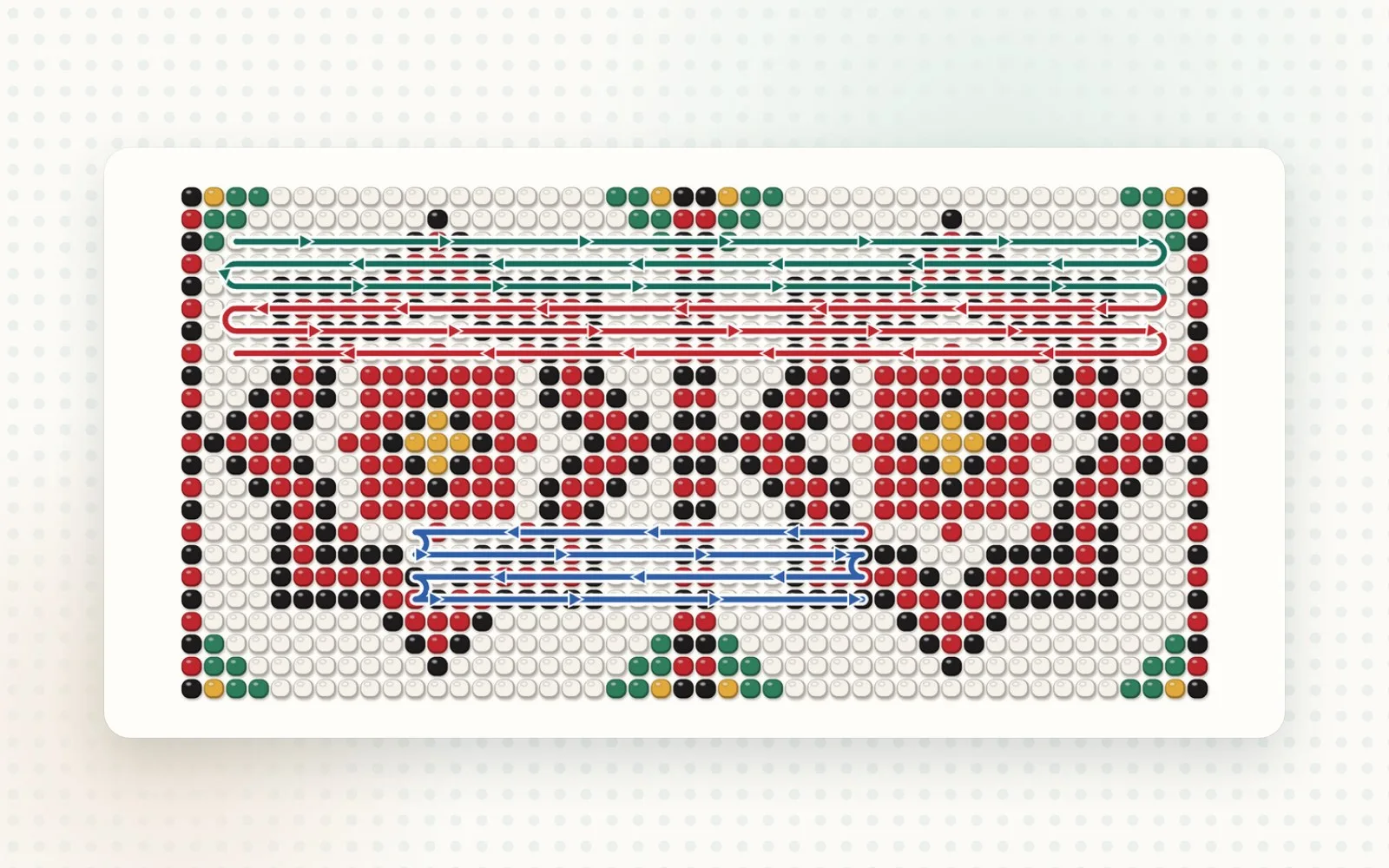
Arrows and colors
“Automatic arrows” line up along the thread by themselves, pointing the way you drew it. You can add an extra arrow by hand or turn one around.
“Recolor section” — mark the start and end of a section on the thread and pick a color. This makes the stages clear: the first pass in one color, the second in another.
Thread color and thickness — blue, red, green, black or a custom color; thin, medium or thick. This helps you tell several threads apart on one pattern.
Several threads and their order
For a complex piece, draw several threads: “New thread” starts the next one, and “Continue from endpoint” extends the current one. All threads are gathered in the “Threads in the scheme” list, where you change their order with the “Earlier” and “Later” buttons. To fix a path, select the thread and drag the little circles on it — you can also make any section straight.
Step-by-step playback
“Play the thread path” shows the threads one by one — like a mini lesson right on the pattern. With the “Previous step” and “Next step” buttons, you can stop at a tricky spot and take a closer look.
In the PDF and in pictures
To include the threads in an export, turn on “Show thread path”. On the pattern itself, you can hide them for a while with the “Show threads” switch.
Who can use it
Creating and editing thread paths is available on the PRO and PREMIUM plans. Existing threads can be viewed and exported on any plan.
Tip: draw the threads once the pattern is finished — they don’t move with the beads automatically. If you change the pattern’s structure, check the path.