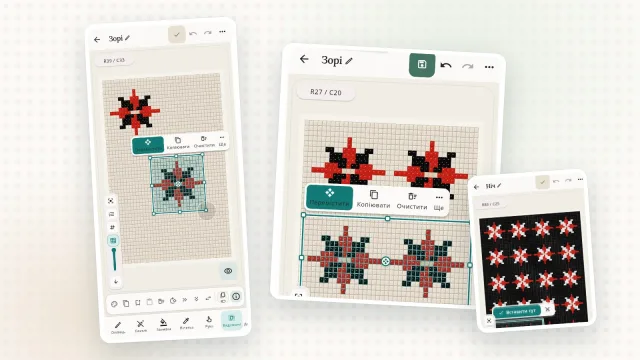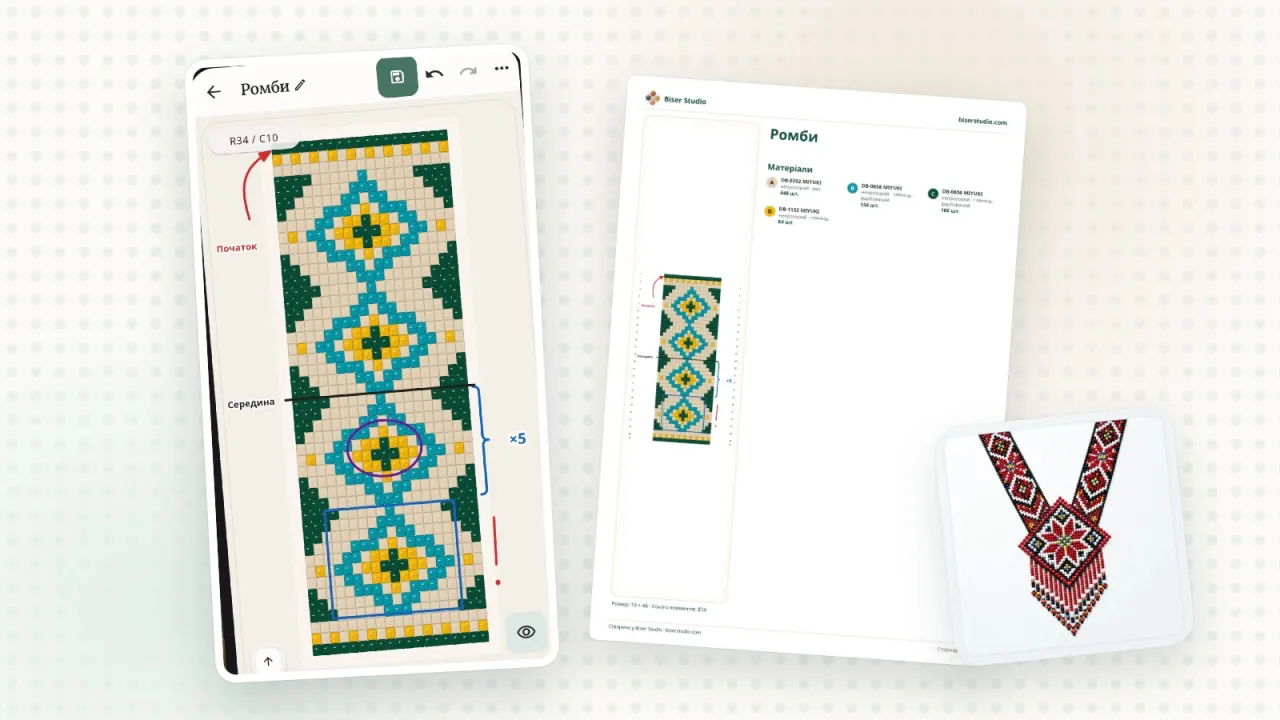
When you make a bead pattern for yourself or for others, you often want to add a note or two: where to start, how many times to repeat a diamond, where the middle is. Now you can do that right on the pattern with the “Annotations” tool. Labels, arrows, braces and drawings sit on top of the pattern, while the beads themselves stay unchanged.
What you can add
“Text” — short labels like “Start”, “×5” or “Middle”. The text size can be small, medium or large.
“Arrow” — shows where to start or which way to go. You can put an arrowhead on both ends.
“Brace” — marks a repeat: drag it along the rows or columns and write “×5” next to it. The brace’s point faces away from the pattern, and you can flip it if needed.
“Line”, “Frame” and “Oval” — highlight the middle, a repeat or a spot where it’s easy to go wrong. Lines snap to horizontal, vertical and diagonal on their own.
“Freehand” — write or draw with your finger, a mouse or a stylus, just like with a pencil on a printout.
Each annotation can have its own color — black, red, orange, green, blue, purple, white or any other — and thickness: thin, medium or thick.
How it works
Open the pattern in the editor and choose the “Annotations” tool.
Pick what to add: text, an arrow, a brace, a line, a frame, an oval or a freehand drawing.
Tap where you want the label, or drag a shape from start to finish.
To move or change an annotation, switch to “Select” and tap it. The “Eraser” removes anything you don’t need.
The “Show annotations” switch hides them for a while — for example, so you can see the beads underneath.
Annotations in the PDF
Annotations are included in exports, too: your printed pattern will have the same labels, arrows and braces as on screen. That makes it easy to prepare patterns for your students, for sale or simply for your future self.
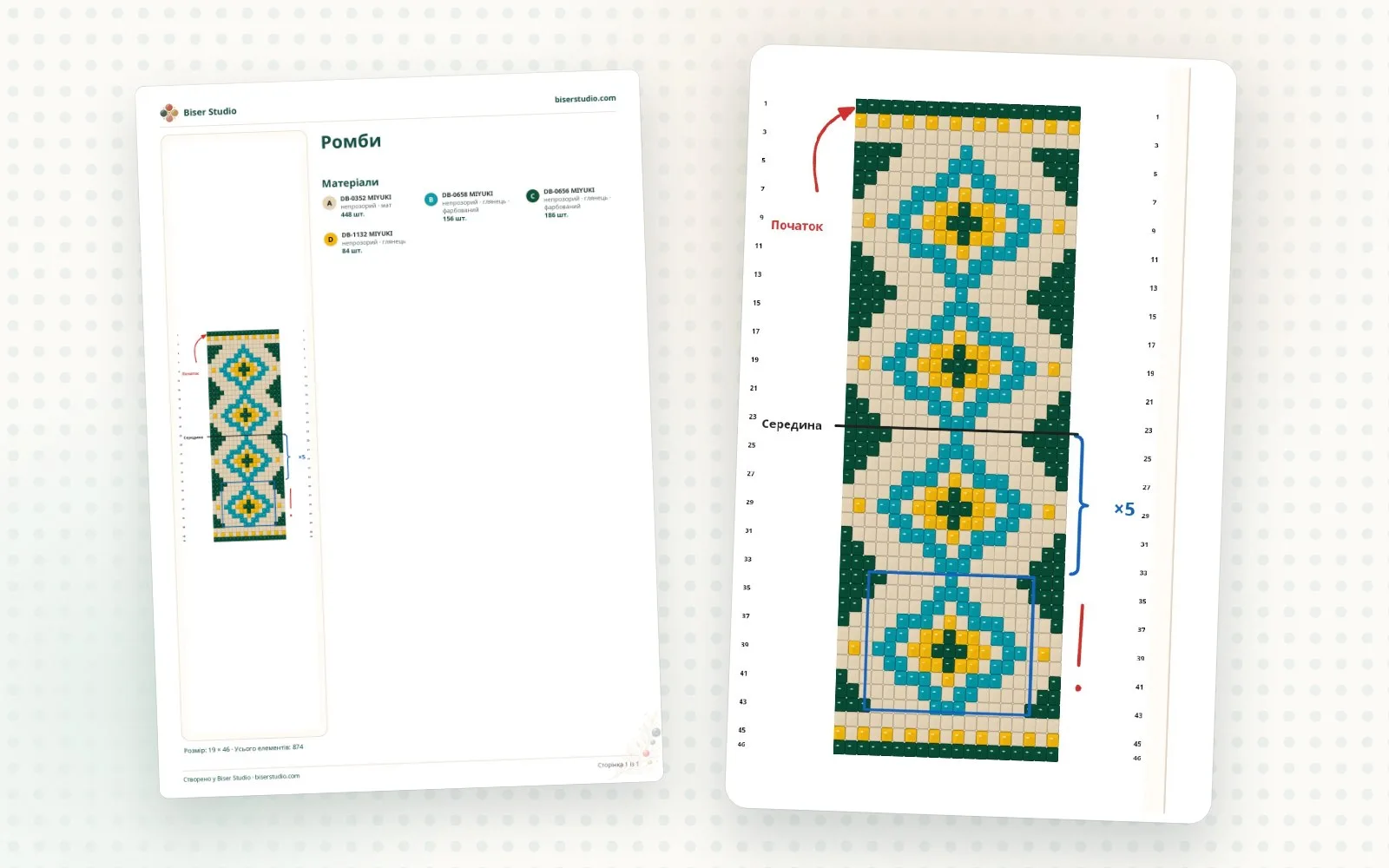
A few tips
Add annotations once the pattern is finished. They don’t move with the beads automatically, so after changing the pattern’s size or structure, check where they ended up.
Less is more: two or three precise labels are easier to read than a dozen.
Stick to one color per meaning: for example, red for the start and blue for repeats.
Who can use it
Adding and editing annotations is available on the PRO and PREMIUM plans. Existing annotations can be viewed and exported on any plan.